
Create a ‘place’ to sell products! Start a website or blog with WordPress.

16 MIN READ
Last time, I talked about the importance of clarifying to whom you sell your products. We have created products and services, and we have also formed a hypothesis about who to sell them to. So, what is the next step?
Whether it's a service or a product, nothing starts without a 'place to convey information.' What is a place to convey information? It's a website and a blog. Blogs are especially important. Marketing on today's websites can be said to be about writing articles. Writing articles, letting users know, and fostering close communication is the most important thing.
Furthermore, a blog serves as a place to attract customers and also a place to actually stimulate their desire to purchase. It is also a place to nurture prospective customers so that they want to purchase products through articles written on the blog.
Please study the minimum writing skills. Hiring a writer is faster, but if you don't have the budget, you'll probably have to write yourself. Sales can change significantly with just one piece of writing, so it's convenient to train this as an absolutely essential skill.
And your website and blog are your own store. If you don't create a store, it's natural that you won't generate sales, no matter how many leads you try to create. After all, you have no place to sell or convey your services. So, let's explain how to create a storefront.
It is generally recommended to use WordPress.
WordPress is the most widely used program for building blogs worldwide. It is distributed for free, and if you rent a server, it usually comes with a feature that allows you to easily install WordPress. WordPress also offers a blog service officially, so you might consider using that.
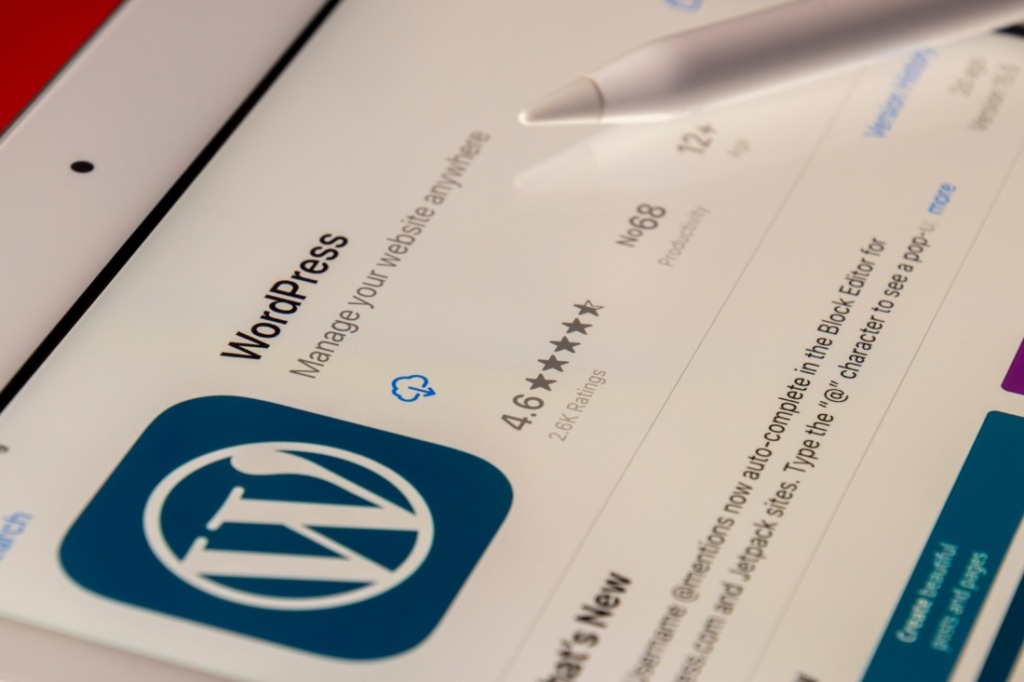
By the way, the reason WordPress is good is because it's easy to update. Blogs and websites are things that are rebuilt many times. We aim for the best form by making fine adjustments and renewals repeatedly, adapting to the times and situations.
Furthermore, there is a lot of information about WordPress on the internet. WordPress is incorporated into many websites that exist in the world. It can be said to be the most major blog service. Moreover, if you build it with WordPress from the beginning, you won't have to 'move data' such as blogs if you decide to renew or make corrections.
For example, let's say you used another company's blog. You spent time updating it daily, accumulating hundreds of articles. As access gradually increases, the time will surely come when you think, 'I want a better blog, so should I use WordPress?' This is because most blog services cannot be flexibly customized. That's when it becomes difficult.
Moving articles is troublesome. Previously, I moved from a certain blog service to WordPress. Although I managed to move the articles, I had to re-download all the images and make various modifications. It was very time-consuming. This work is completely superfluous, and for a client, it means paying money that doesn't need to be paid. Wasted money, time, it's all regrettable.
Ultimately, if you want to build it properly, you will use WordPress. So, let's make every effort to use WordPress from the beginning to write articles and create promotional pages. It takes a little effort, but it is definitely more recommended than easily using other services.
By the way, to use WordPress, you basically need a 'custom domain' and a 'server.' Many of you might be wondering what those are, so we will explain each in the following sections. It is a paid service, but it costs only a few hundred yen per month, so I don't think it will be much of a burden. WordPress will definitely be better in the long run, so please give it a try.
First, let's acquire a custom domain.
Now, first is the custom domain. A custom domain is a URL. For our website, 'quon.ink' is the custom domain. This is like the address of a website; without a custom domain, you cannot view the site.
So, regarding 'where can I get my own domain name?', there are several services. First, speaking of famous ones,Onamae.com it is. They've used AKB48 in their commercials, so their recognition is probably the highest.
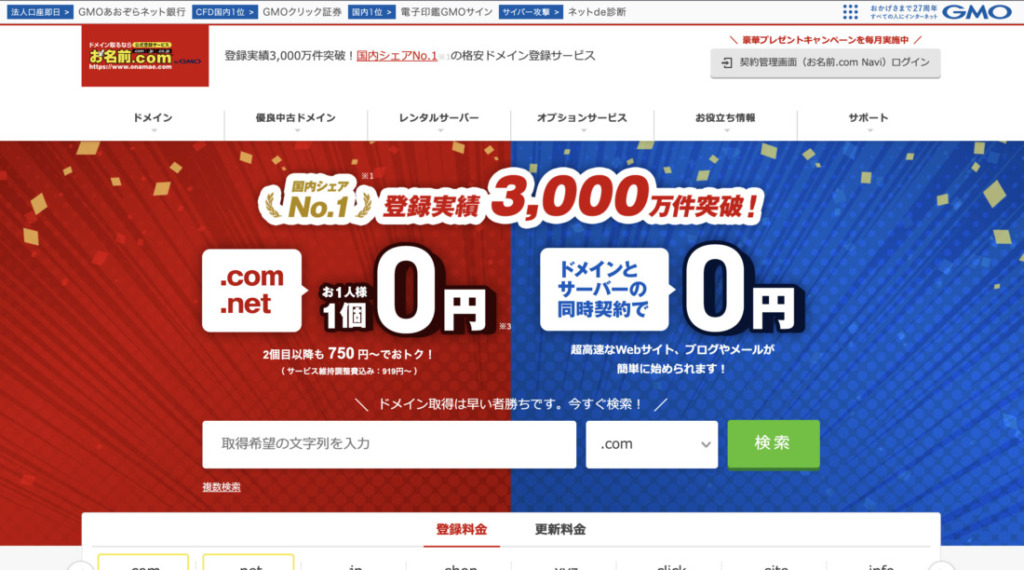
However, many people probably wonder 'what kind of service is it?'. It's a company that issues website domains, in other words, addresses.
Another one isMuumuu Domain is another service. These are just the two I use. Honestly, there isn't much difference no matter where you register a domain.Onamae.comButMuumuu Domainsince either is fine, let's register it.
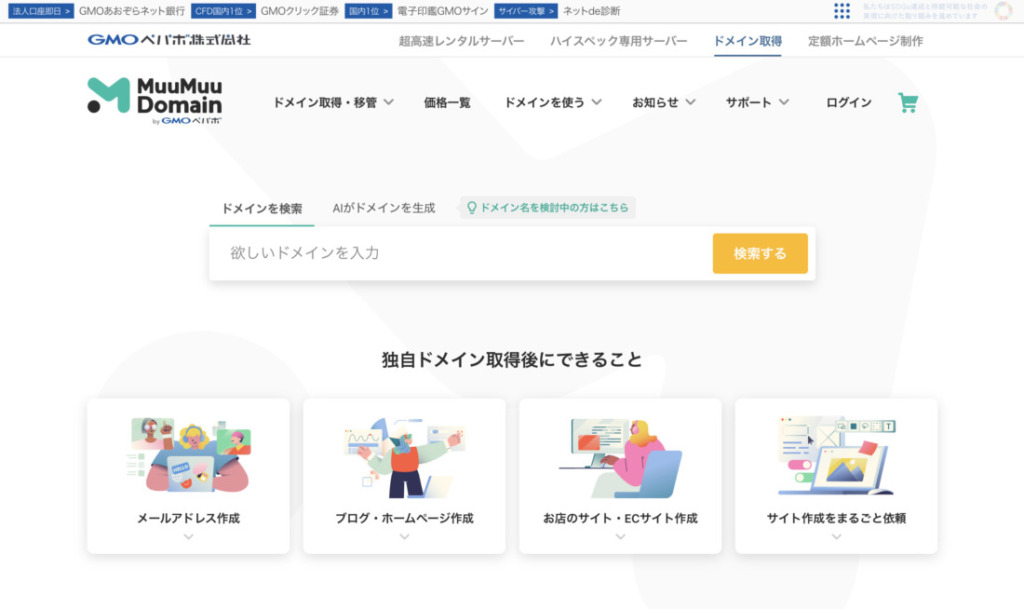
By the way, there are various options like '.com', '.net', '.jp', etc., but for search engines, there isn't much difference between them. It's just about what interpretation you want to give it, and whether users can easily remember it.
At most, '.com' is recognized globally, and other domains like '.jp' are based on specific countries or place names. Recently, various domains have emerged, so not all of them are based on place names.
However, even with domains from other countries, they can be interpreted differently depending on how you or the user perceives them. There isn't much difference beyond how you think about it. And of course, rest assured that it won't affect search rankings.
Let's try renting a server to install WordPress.
Specifically, regarding 'where do you use WordPress?', basically, when you rent a server from a server company, there's usually a 'WordPress easy installation' feature. By the way, a server is like a data storage space that a company lends you. Basically, if you don't use a server, your website won't be viewable.
Generally, blog services are also on servers, but these are services provided to many people within servers owned by the company from the start. On the other hand, in the case of WordPress, only the system is provided, so generally, you can't use it unless you rent your own server. You don't necessarily need to remember this part at first.
Currently, servers that allow easy use of WordPress include the following:


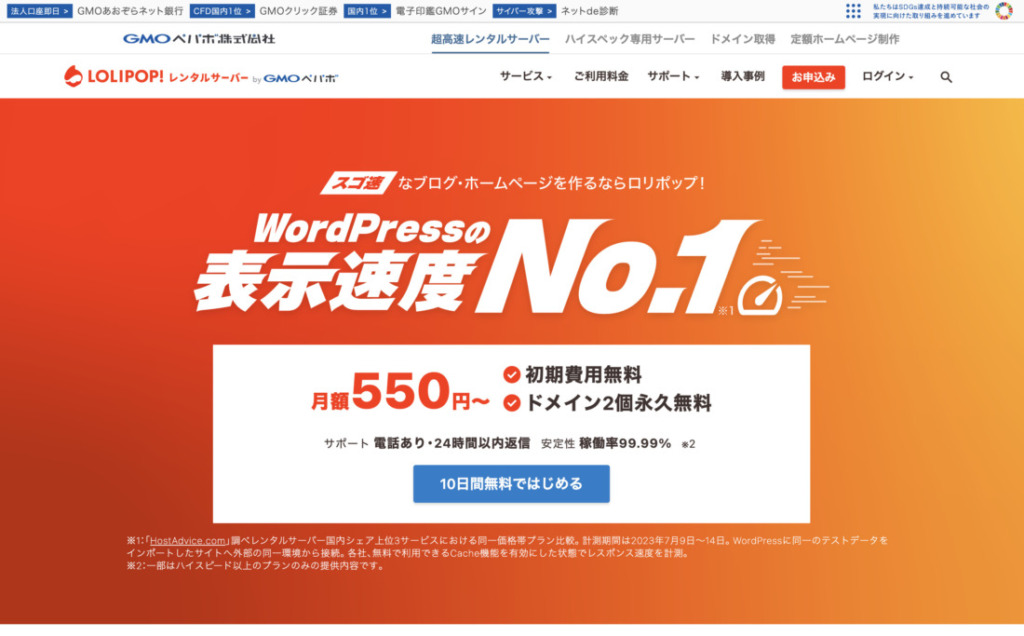
Looking from the top,Lolipopis inexpensive, and the administration screen is easy to use. Even in the industry, beginnersLolipopstarting by signing a contract with is a kind of standard. If you don't have any particular preferences about servers, let's use Lolipop.
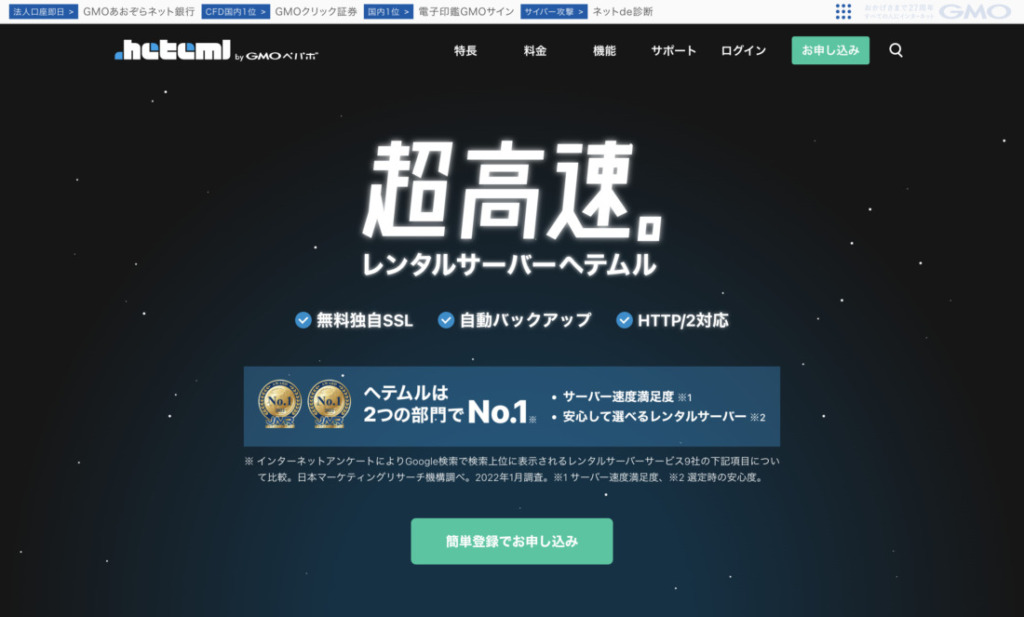
AndhetemlHowever, this one is a bit more expensive. However, that doesn't mean it's only for advanced users; the administration screen is easy to use, just like Lolipop. Because of its ease of use and stability, during my beginner days, I usedhetemlI used.
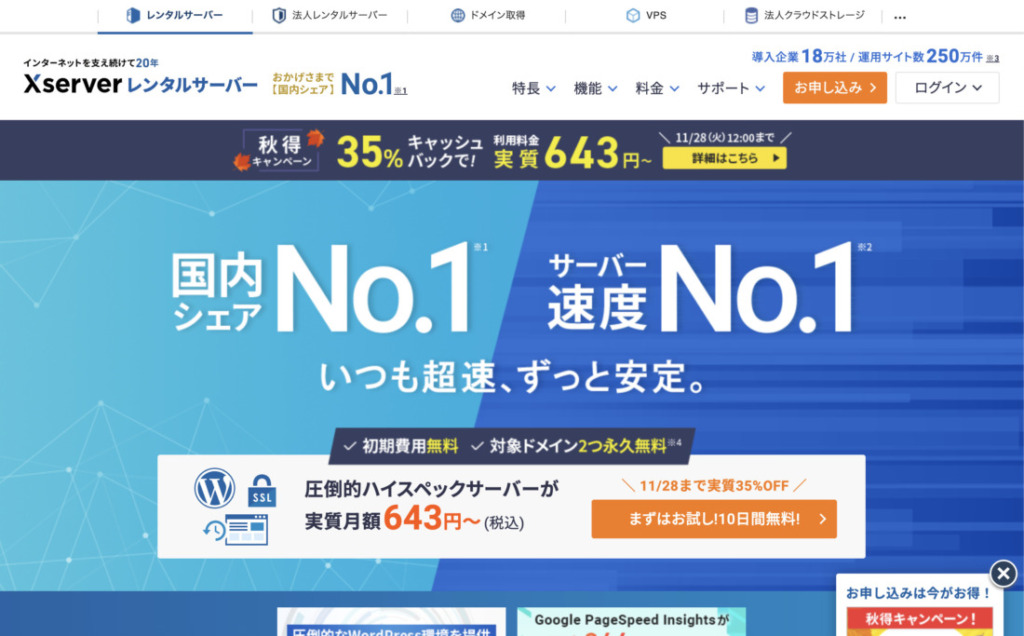
Xservercan also be easily started by beginners. It's said to be a high-functional and high-performance server, but I have the impression that it's not much different from the other servers I've introduced so far. Since there's a trial period, if you find the two servers mentioned above difficult to use or inconvenient, I think it's okay to try this one.
In any case, what I recommend for beginners ishetemlis. You can operate your website with stability without having to do various unnecessary settings.
The aboveLolipop、heteml、Xserverall come with an easy WordPress installation feature. Please be assured that these are the three optimal servers for installing and using WordPress. For information on how to install and use WordPress, please refer to each site.
However, please wait a moment before setting up WordPress. There's something to do first. You must connect the server and domain. You need to connect the unique domain you just acquired with the server so that when you click on your domain, you can see the server's contents.
Just acquiring a domain and server won't make your website viewable. First, let's connect the domain and server. If you set up WordPress before doing this, you'll need an extra step.
Let's connect the domain and server.
Now you have a domain and a server. However, these two are still independent, and even if you click on the acquired domain, it won't know which server to look at. Therefore, you must inform the domain and server where each other is located.
However, the method differs depending on the acquired domain and server. Therefore, I will omit detailed explanations, but you should be able to find the respective methods by searching on Google or ChatGPT, etc.
If it's 'Onamae.com' and 'HETEML', you'll find many results by searching for 'Onamae.com HETEML Domain Nameserver', etc., and if it's 'MuuMuu Domain' and 'XSERVER', you'll find results by searching for 'MuuMuu Domain XSERVER Domain Nameserver', etc.
The official sites explain the connection methods below.
- How to connect MuuMuu Domain and HETEML
https://support.heteml.jp/hc/ja/articles/360042135274 - MuuMuu Domain and Lolipop
https://lolipop.jp/manual/user/dns-shift/
There is already a lot of information available on the internet for each, so please refer to it. If I have time, I'd like to write about each connection method as well.
Please note that even after the settings are complete, they will not be applied immediately; it usually takes about 3 hours for them to be fully applied. In some cases, it may take up to 24 hours, but if they are not applied within 3 hours, there is usually something wrong with the settings, so please review them.
Before starting the WordPress installation process, please confirm that your domain is connected to the corresponding server when you access it. For example, if you click on a domain acquired from Onamae.com and a screen like 'This domain has been acquired from Onamae.com' appears, it means it's 'not yet' connected. If it's functioning correctly, a screen related to the connected server should appear.
After the domain is properly connected as described above, use the WordPress Easy Install service available in each server's administration panel and complete the installation as prompted. Setting it up before it's connected will add an extra step.
WordPress has themes (templates).
Once WordPress is installed on the server using WordPress Easy Install or similar methods, you can then change the design. WordPress has a theme (template) function, and you will generally download or purchase the most suitable theme for your website to use.
Regarding theme purchases, if you search on Google for 'WordPress' and 'theme sales,' you should find many results. Free downloads are available from within the WordPress administration screen. Click 'Appearance' > 'Themes' in the WordPress sidebar. Clicking 'Add New' at the top will allow you to search through a vast number of themes.
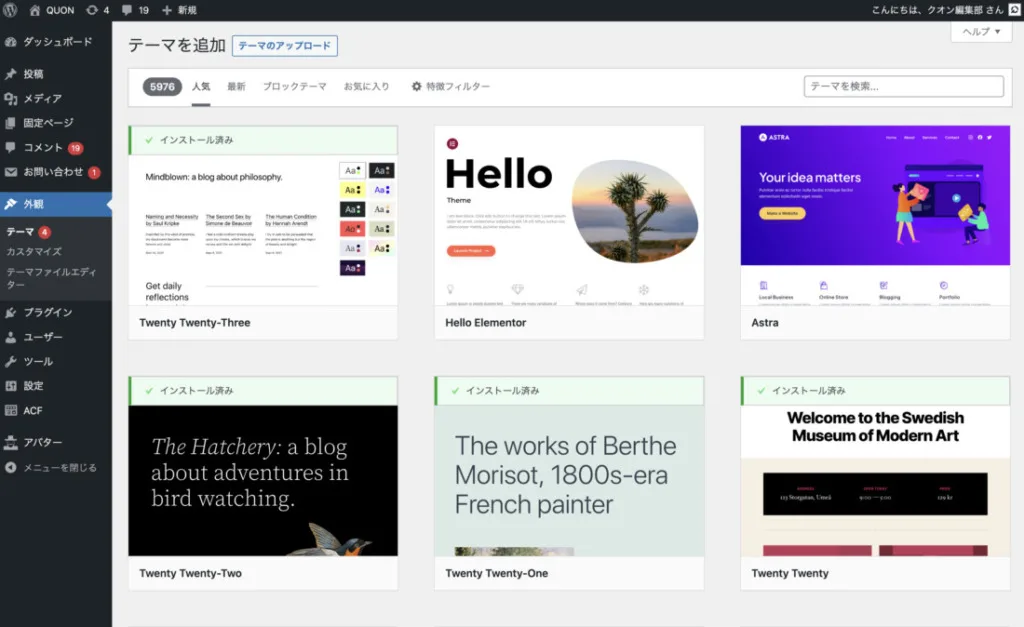
It is possible to customize themes yourself, but it requires HTML, CSS, and PHP skills. If you haven't acquired these skills, you should not attempt to customize themes yourself. It is a technical job, and there is a high possibility of breaking the theme.
Please note that when you add a theme, items may be added to the administration screen, and the usage may change slightly. Unless a theme is very famous, you won't find instructions on how to use each theme by searching. However, it's not that difficult, so once you apply a theme, try exploring the administration screen yourself to understand it.
Let's set up a contact form and Google Analytics.
There are two essential things when running a website. First, a contact form for inquiries. And,Google Analyticswhich is an access analysis tool.
What it analyzes is the behavior of users accessing your website, such as how many times it was accessed and from where.
This analysis is very important, allowing you to see detailed information about access, such as which articles are being read, and when access increases or decreases. You can even see how much access is coming in real-time.
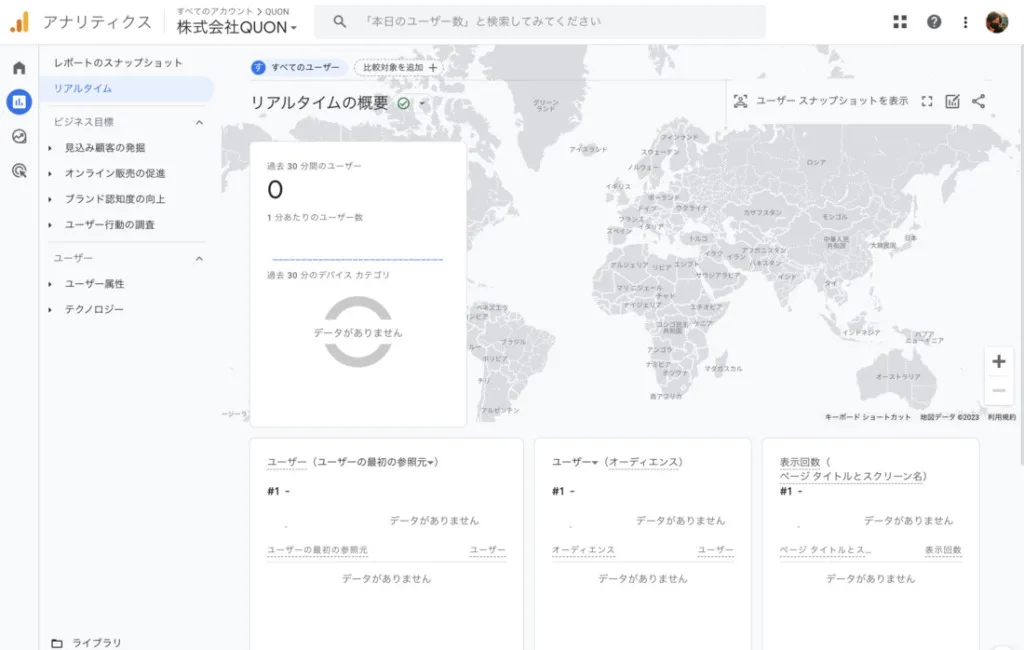
I plan to write in detail later about how to set up Google Analytics on WordPress, but if you want to create it sooner, try searching on Google with the keywords 'Google Analytics', 'WordPress', and 'setup'. You'll find a ton of information.
Regarding contact forms, we use 'plugins' found in the WordPress sidebar. Plugins are a very useful feature that adds functionalities not originally present in WordPress.
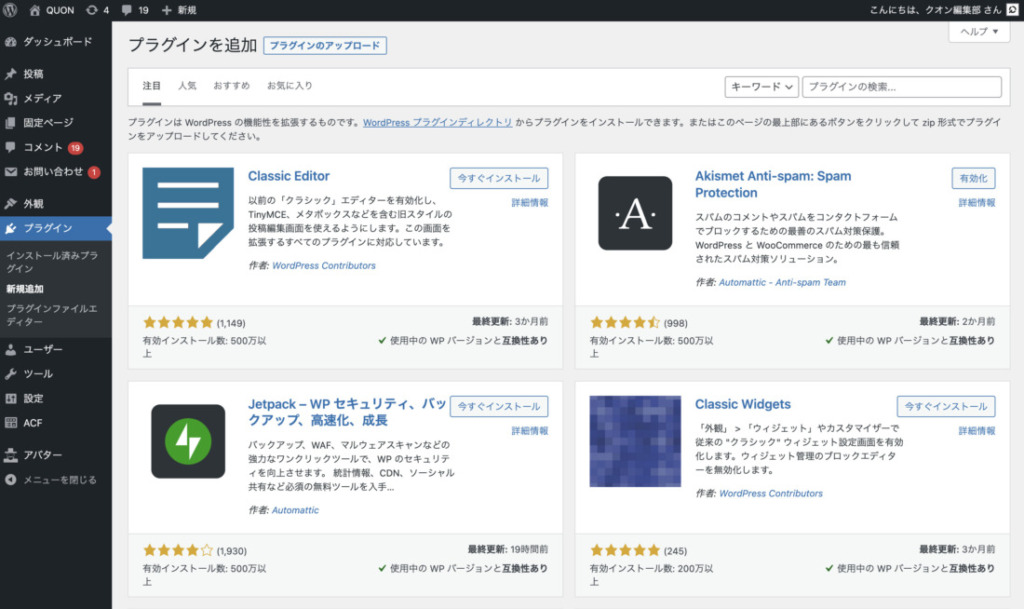
There are many plugins available, with functions ranging from adding contact forms to creating social networks like Facebook. There are even plugins for creating shopping sites, and it's safe to say that with plugins, there's no site you can't build with WordPress. Furthermore, engineers worldwide develop and provide plugins mostly for free.
Regarding email forms, there is a plugin called Contact Form 7 that allows you to easily create email forms. It is a very famous plugin widely used in Japan when creating simple email forms.
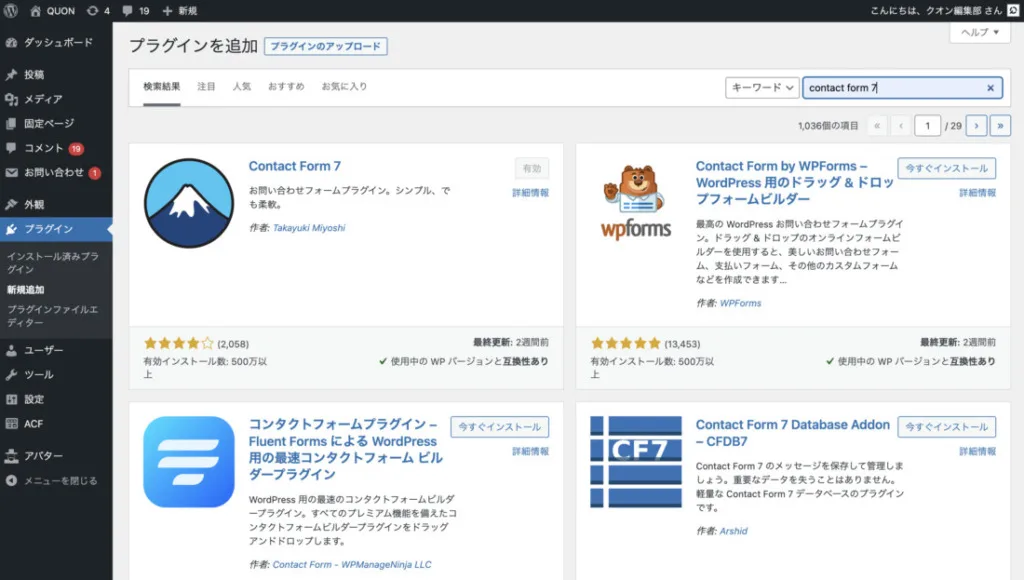
Clicking on 'Plugins' in the sidebar, you will find an 'Add New' button at the top of the next page. Click 'Add New' and type 'Contact Form 7' into the search bar in the upper right to search, and a plugin with a 'Mt. Fuji icon' will appear. Install and activate this Mt. Fuji icon plugin, and it will become available for use.
Regarding the specific usage from that point on, I will also write about it in detail later, but if you want to proceed quickly, please search on Google for 'Contact Form 7' and 'how to use'. Many sites will provide detailed explanations. I don't think there's any need for me to write about it again.
For now, let's install Google Analytics and an email form, so you can actually communicate with users and analyze access. Even if you have nothing else, these two are essential.
Let's add 'social buttons' with a plugin.
There were other plugins that should be installed. These are social buttons. When you look at web media or blogs, you see buttons like 'Share Article' next to the article or below the title, right?
Buttons, starting with this share button, are important, and articles that receive a lot of feedback here will, of course, be evaluated by Google's search engine, and at the same time, they will be spread on social media.
These social buttons can be enabled with the plugin 'AddToAny Share Buttons'. Please search for 'AddToAny Share Buttons' using the same procedure as before. Once found, install and activate it. Then, you will see that a dedicated administration screen for AddToAny Share Buttons becomes available under 'Settings' in the left sidebar.
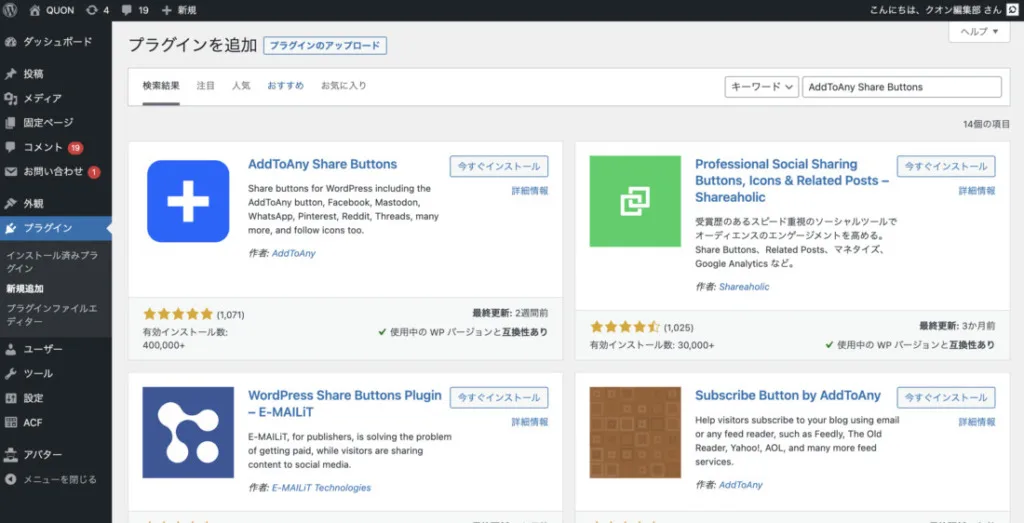
By the way, there are many buttons you can set, but having these five: 'LINE', 'Facebook', 'X (formerly Twitter)', 'Pocket', and 'Hatena Bookmark' should be sufficient. Too many buttons might cause confusion, so let's limit the buttons to these five.
Set everything up until you are generally satisfied, and then start writing articles.
You're almost there. Review the entire site and proceed with production while checking the administration screen. Add images and text to refine the appearance. Since the customization method depends on the template you ultimately choose, proceed while thoroughly understanding it.
Once all settings are complete, it's time to start writing articles. As I mentioned at the beginning, writing articles is the most important thing. I will explain how to write articles separately later.
Now, you finally have a place to release your own services and products. From now on, we will finally enter the stage of how to attract customers and sell products. We will be entering a phase that can be called the essence of web marketing, so please look forward to it.
WRITTEN BY
上山 翔太
2007年からWEBデザイナー / エンジニアとして活動を開始。2015年には、セブ島にて立ち上げた日本人対象のクリエイター育成スクールと運営していたメディアを売却。その後、アメリカで事業デザインを無理やり学ぶ。帰国後は起業家育成プログラムを立ち上げ、新規事業開発、起業家育成に従事するほか、マーケティング戦略策定、ウェブ開発技術を提供。「IT留学シェアハウス」や「起業教育・支援プラットフォーム」を開発、運営。その後、株式会社QUONを立ち上げ。WEB制作事業を軸として、クリエイターと起業家を産む村づくりプロジェクトなどをバリ島と日本を中心に推進。


